Apakah VPN?
Mungkin istilah ini cukup sering terdengar oleh para praktisi teknologi informasi maupun pengamatnya, namun apa sih sebenarnya maksud dari istilah ini? Teknologi apa itu VPN? Apa sih gunanya?
VPN adalah sebuah teknologi komunikasi yang memungkinkan Anda terkoneksi ke jaringan publik dan menggunakannya untuk bergabung dalam jaringan lokal. Dengan menggunakan jaringan publik, Anda dapat tergabung dalam jaringan lokal, mendapatkan hak dan pengaturan yang sama seperti ketika Anda berada di jaringan LAN.
VPN dapat terjadi antara dua end-system atau dua PC atau bisa juga antara dua atau lebih jaringan yang berbeda. VPN dapat dibentuk dengan menggunakan teknologi tunneling dan encryption. Koneksi VPN juga dapat terjadi pada semua layer pada protokol OSI, sehingga Anda dapat membuat komunikasi VPN untuk apapun keperluan Anda. Dengan demikian, VPN juga dapat dikategorikan sebagai infrastruktur WAN alternatif untuk mendapatkan koneksi point-to-point pribadi antara Anda dengan tujuan. Dan ini dilakukan dengan menggunakan media apa saja, tanpa perlu media leased line atau frame relay.
Apakah Fungsinya VPN?
Teknologi VPN menyediakan tiga fungsi utama untuk penggunanya. Fungsi utama tersebut adalah sebagai berikut:
1. Confidentiality (Kerahasiaan)
Teknologi VPN memiliki sistem kerja mengenkripsi semua data yang lewat melaluinya. Dengan adanya teknologi enkripsi ini, maka kerahasiaan Anda menjadi lebih terjaga. Biarpun ada pihak yang dapat menyadap data Anda yang lalu-lalang, namun belum tentu mereka bisa membacanya dengan mudah karena memang sudah diacak. Dengan menerapkan sistem enkripsi ini, tidak ada satupun orang yang dapat mengakses dan membaca isi jaringan data Anda dengan mudah.
2. Data Integrity (Keutuhan Data)
Ketika melewati jaringan Internet, data Anda sebenarnya sudah berjalan sangat jauh melintasi berbagai negara. Di tengah perjalanannya, apapun bisa terjadi terhadap isinya. Baik itu hilang, rusak, bahkan dimanipulasi isinya oleh orang-orang iseng. VPN memiliki teknologi yang dapat menjaga keutuhan data yang Anda kirim agar sampai ke tujuannya tanpa cacat, hilang, rusak, ataupun dimanipulasi oleh orang lain.
3. Origin Authentication (Autentikasi Sumber)
Teknologi VPN memiliki kemampuan untuk melakukan autentikasi terhadap sumber-sumber pengirim data yang akan diterimanya. VPN akan melakukan pemeriksaan terhadap semua data yang masuk dan mengambil informasi source datanya. Kemudian alamat source data ini akan disetujui jika proses autentikasinya berhasil. Dengan demikian, VPN menjamin semua data yang dikirim dan diterima oleh Anda berasal dari sumber yang semestinya. Tidak ada data yang dipalsukan atau dikirimkan oleh pihak-pihak lain.
Mengapa Memilih Menggunakan VPN?
Setelah Anda mengetahui VPN adalah salah satu alternatif untuk berkomunikasi data, mengapa Anda harus memilih teknologi itu? Mungkin Anda perlu mengetahui bahwa VPN memiliki banyak keuntungan yang khas dibandingkan dengan teknologi komunikasi tradisional seperti misalnya jaringan leased line. Keuntungan tersebut adalah sebagai berikut:
VPN menawarkan solusi dengan biaya murah.
Kebutuhan Anda untuk berkomunikasi dengan banyak kantor cabang mungkin tidak bisa ditawar-tawar lagi, namun biasanya yang menjadi kendala adalah mahalnya biaya kepemilikan untuk membangun jaringan komunikasinya. Menggunakan jaringan leased line khusus atau jaringan packet switching tentu juga memerlukan biaya ekstra yang tidak kecil. Salah satu mengakalinya adalah dengan menggunakan solusi VPN. Dengan menggunakan VPN, Anda dapat membangun jaringan pribadi ini melalui koneksi Internet yang telah Anda miliki. Perangkat-perangkat yang dibutuhkan juga tidak banyak, dan maintenance-nya pun tidak terlalu sulit.
VPN menawarkan fleksibilitas seiring dengan perkembangan Internet.
Roda perekonomian dunia tidak luput juga dari pengaruh perkembangan Internet dan komunikasi data. Jika dulunya kantor-kantor cabang sebuah perusahaan harus menggunakan WAN antarkota bahkan antarnegara untuk dapat saling bertukar informasi, kini seiring dengan perkembangan Internet, hal itu tidak diperlukan lagi. VPN dapat membawa data Anda tepat ke lokasi kantor cabang yang Anda tuju melalui jaringan umum Internet, namun dengan perlakuan seperti layaknya melewati jalur pribadi. Dengan adanya kemudahan seperti ini, maka fleksibilitas tentu akan Anda rasakan. Anda dapat membuat kantor cabang di mana saja, kemudian berlangganan koneksi Internet dan percayakan jalur komunikasi datanya ke pusat dengan menggunakan VPN. Ketika Anda berada di luar negeri, hubungan data Anda tidak akan terputus selama masih ada koneksi Internet. Selain itu, masih banyak lagi fleksibilitas yang akan Anda dapatkan dari VPN.
VPN menawarkan kemudahan pengaturan dan administrasi dibandingkan dengan jaringan leased line.
Anda tidak perlu memonitor modem-modem leased line Anda untuk menjaga agar koneksinya tidak putus. Anda tidak perlu menyediakan perangkat dan ruangan khusus untuk me-maintain jaringan Anda ke kantor-kantor cabang ini. Dengan VPN, Anda tidak perlu lakukan semua itu. Cukup menginstal server VPN, install klien-kliennya di PC kerja Anda, jadilah koneksi pribadi Anda.
VPN menggunakan teknologi tunnel yang akan mengurangi kerumitan pengaturan.
Dalam mewujudkan sebuah koneksi pribadi, VPN menggunakan sebuah teknologi bernama tunneling atau arti harafiahnya adalah terowongan. Tunnel inilah kunci dari VPN, di mana koneksi pribadi bisa Anda dapatkan dari mana salah lokasi Anda berada, selama terbentuk sebuah tunnel yang menghubungkannya. Dengan adanya teknologi tunnel ini, Anda tidak perlu pusing dengan pengaturan-pengaturan yang ada di luar tunnel tersebut. Asalkan sumber dari tunnel tersebut dapat menjangkau tujuannya, maka tunnel akan terbentuk.
Perangkat Apa Saja yang Dapat Menggunakan VPN?
Pada dasarnya, semua perangkat komputer yang dilengkapi dengan fasilitas pengalamatan IP dan diinstali dengan aplikasi pembuat tunnel dan algoritma enkripsi dan dekripsi, pasti bisa membangun komunikasi VPN. Komunikasi VPN dengan tunneling dan enkripsi ini bisa dibangun antara sebuah router dengan router, antara sebuah router dengan banyak router, antara PC dengan server VPN concentrator, antara router atau PC dengan firewall berkemampuan VPN, dan banyak lagi.
Dengan adanya fleksibilitas dalam penggunaan VPN inilah, teknologi ini menjadi berkembang pesat dalam penggunaan sehari-hari sehingga mengubah cara-cara berkomunikasi, berbisnis, belajar, bersenang-senang, dan banyak aktivitas lainnya. VPN dapat dilakukan kapan saja dan dari mana saja selama ada koneksi Internet yang memadai.
Apa Saja Jenis-jenis Remote Access VPN?
Pada dasarnya, VPN merupakan sebuah proses remote access yang bertujuan mendapatkan koneksi ke jaringan private tujuannya. Proses remote access VPN ini dipisahkan menjadi dua jenis lagi berdasarkan oleh siapa proses remote access VPN tersebut dilakukan. Berikut ini adalah jenis-jenisnya:
Client-initiated
Client-initiated arti harafiahnya adalah pihak klien yang berinisiatif untuk melakukan sesuatu. VPN jenis ini juga demikian dan ini merupakan jenis VPN yang paling umum digunakan. Jadi ketika PC Anda ingin membangun koneksi VPN, maka PC tersebutlah yang berusaha membangun tunnel dan melakukan enkripsi hingga mencapai tujuannya dengan aman. Namun, proses ini tetap mengandalkan jaringan ISP yang digunakan secara umum. Clientinitiated VPN sering digunakan oleh PC-PC umum dengan mengandalkan VPN server atau VPN concentrator pada jaringan tujuannya
Network Access Server-initiated
Lain dengan client-initiated, VPN jenis ini tidak mengharuskan clientnya membuat tunnel dan melakukan enkripsi dan dekripsi sendiri. VPN jenis ini hanya mengharuskan penggunanya melakukan dial-in ke Network Access Server (NAS) ISP. Kemudian NAS inilah yang membangun tunnel menuju ke jaringan private yang dituju oleh clien tersebut. Dengan demikian, koneksi VPN dapat dibangun oleh banyak clien dari manapun karena biasanya NAS milik ISP tersebut memang sering kali dibuka untuk umum.
Bagaimana Penggunaan Teknologi VPN di Masyarakat?
VPN memang telah menjadi sebuah teknologi alternatif sejak lama. Dunia bisnis juga sudah tidak sungkan untuk menggunakan VPN sebagai kunci dari proses bisnisnya. Seperti misalnya pemesanan tiket perjalanan, transaksi perbankan, transaksi informasi keuangan, dan banyak lagi sektor penting juga sudah mempercayakan VPN sejak lama. Dilihat dari segi siapa saja yang dapat terkoneksi dengan VPN dan apa saja yang dapat dijangkau oleh pihak yang terkoneksi tersebut, VPN dapat dibagi menjadi dua jenis. Jenis-jenis tersebut adalah sebagai berikut:
Intranet VPN
Intranet VPN merupakan koneksi VPN yang membuka jalur komunikasi pribadi menuju ke jaringan lokal yang bersifat pribadi melalui jaringan publik seperti Internet. Melalui VPN jenis ini, biasanya para pengguna VPN dapat langsung mengakses file-file kerja mereka dengan leluasa tanpa terikat dengan tempat dan waktu. Koneksi ke kantor pusat dapat dilakukan dari mana saja, dari kantor pusat menuju ke kantor cabang Anda dapat membuat koneksi pribadi, dan dari kantor cabang juga memungkinkan untuk dibuat jalur komunikasi pribadi nan ekonomis asalkan menggunakan VPN.
Extranet VPN
Extranet VPN biasanya adalah fasilitas VPN yang diperuntukkan bagi pihak-pihak di luar anggota organisasi atau perusahaan Anda, namun mempunyai hak dan kepentingan untuk mengakses data di dalam kantor Anda. Biasanya penggunaan VPN jenis ini diperuntukkan bagi para customer, vendor, supplier, partner, dan banyak lagi pihak luar yang juga memiliki kepentingan di dalam jaringan Anda.
Seperti telah dijelaskan di atas, VPN yang Anda gunakan terdiri dari perpaduan teknologi tunneling dan encryption. Sebenarnya apa sih teknologi tunneling dan encryption tersebut? Bagaimana teknologi ini bisa menjadikan VPN sebagai koneksi pribadi yang aman? Bagaimana VPN bisa dipercaya oleh banyak pengguna komputer untuk melewatkan data rahasia? Semua berkat kedua teknologi ini.
Teknologi tunneling seperti telah disinggung sedikit di atas, adalah sebuah teknologi yang bertugas untuk menangani dan menyediakan koneksi Point-to-Point dari sumber data ke tujuannya. Mengapa disebut dengan istilah “Tunnel”? Hal ini dikarenakan koneksi Point-to-Point ini sebenarnya terbentuk dengan melintasi jaringan umum, namun koneksi ini tidak peduli akan paket-paket data milik orang lain, melainkan hanya melayani transportasi data Anda pembuatnya.
Hal ini sama seperti halnya jalur busway yang menggunakan jalur umum hanya untuk dilewati olehnya. Koneksi Point-to-Point ini sesungguhnya tidak benar-benar ada, namun data yang dihantarkannya terlihat seperti benar-benar melewati koneksi pribadi yang bersifat Point-to-Point. Teknologi ini biasanya dapat dibuat di atas jaringan dengan pengaturan IP addressing dan IP routing yang sudah matang. Maksudnya antara sumber tunnel dengan tujuan tunnel telah dapat saling berkomunikasi melalui jaringan dengan pengalamatan IP. Jika komunikasi antara sumber dan tujuan tunnel tidak berjalan dengan baik, maka tunnel tidak akan terbentuk dan VPN tidak akan dapat tercipta.
Jika tunnel sudah terbentuk, maka koneksi Point-to-Point palsu ini langsung dapat digunakan untuk melewatkan data Anda. Namun di dalam teknologi VPN, tunnel tidak dibiarkan terbuka begitu saja tanpa diberikan sistem keamanan tambahan. Tunnel ini akan segera dilengkapi dengan sebuah sistem enkripsi untuk data-datanya yang lewat. Proses enkripsi data inilah yang menjadikan teknologi VPN menjadi lebih aman dan lebih bersifat pribadi, sehingga Anda serasa menggunakan jalur komunikasi pribadi saja.
Teknologi Encryption menjamin data Anda yang lalu-lalang dalam tunnel tidak bisa dibaca oleh orang lain selain perangkat komputer tujuannya sebagai penerimanya yang sah. Semakin banyak data yang lewat dalam tunnel yang terbuka di jaringan publik ini, maka teknologi enkripsi ini semakin dibutuhkan. Enkripsi akan mengubah informasi yang ada di tunnel tersebut menjadi sebuah ciphertext atau teks-teks kacau yang tidak ada artinya sama sekali jika dibaca secara langsung. Untuk membuatnya kembali memiliki arti dibutuhkan proses dekripsi. Proses dekripsi merupakan proses pembentukan kembali teks-teks kacau tadi. Proses ini biasanya terjadi pada ujung-ujung dari hubungan VPN ini.
Pada kedua ujung ini biasanya telah menyepakati sebuah algoritma yang akan digunakan untuk melakukan proses dekripsi ini. Dengan demikian, data akan sampai dengan selamat dan cukup aman untuk sebuah transaksi yang melalui jalur publik.
Data Anda di Mana-mana
Teknologi VPN membuat dunia semakin tak berbatas. Dengan hanya bermodalkan koneksi Internet, seluruh data dalam jaringan di kantor Anda bisa Anda akses dengan mudah. Tidak hanya untuk berkirim-kiriman data sederhana saja teknologi VPN digunakan, namun VPN juga sangat banyak diaplikasikan di dunia perbangkan, tour dan travel, ekspedisi, dan banyak sektor lainnya yang menjadikan VPN sebagai kunci bisnis utamanya.
Tampaknya VPN saat ini tidak lagi dianggap sebagai solusi alternatif, melainkan sebuah solusi utama untuk mendukung perkembangan komunikasi yang semakin cepat. Bagaimana dengan Anda? Apakah VPN merupakan solusi yang tepat untuk keperluan Anda? Pada edisi berikutnya, akan dibahas lebih detail mengenai teknik tunneling dan enkripsinya yang merupakan kunci utama dari VPN. Selamat belajar!
Oh iya, sekedar cuma tambahan. Kalo kalian mau coba software VPN bisa download
disini (HAMACHI). Bisa buat main game LAN dan lain-lain


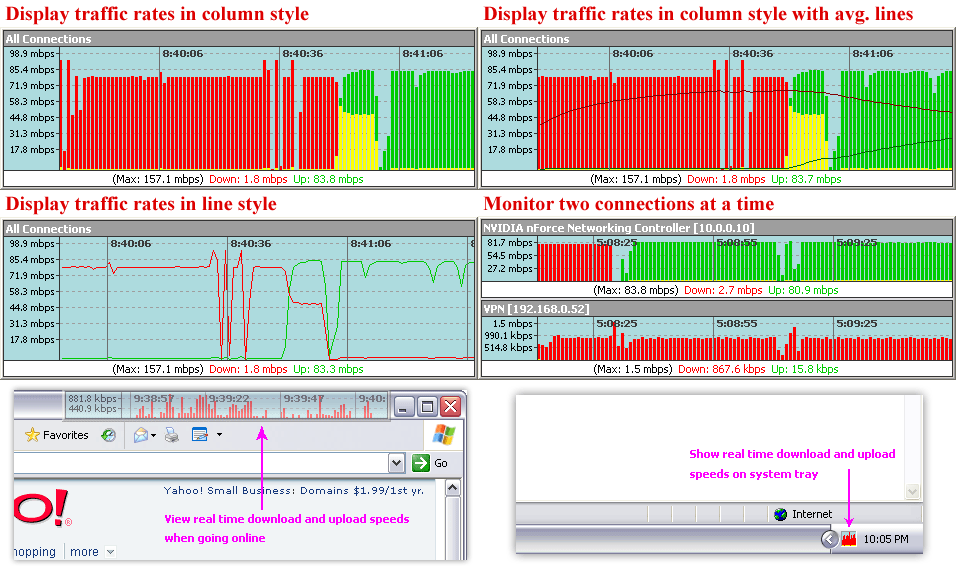


 Dowload link 1